
How to add a pigeon auction in PigeonTree
Your private loft record is the starting point. You decide which materials become public and confirm the final preview before publishing.
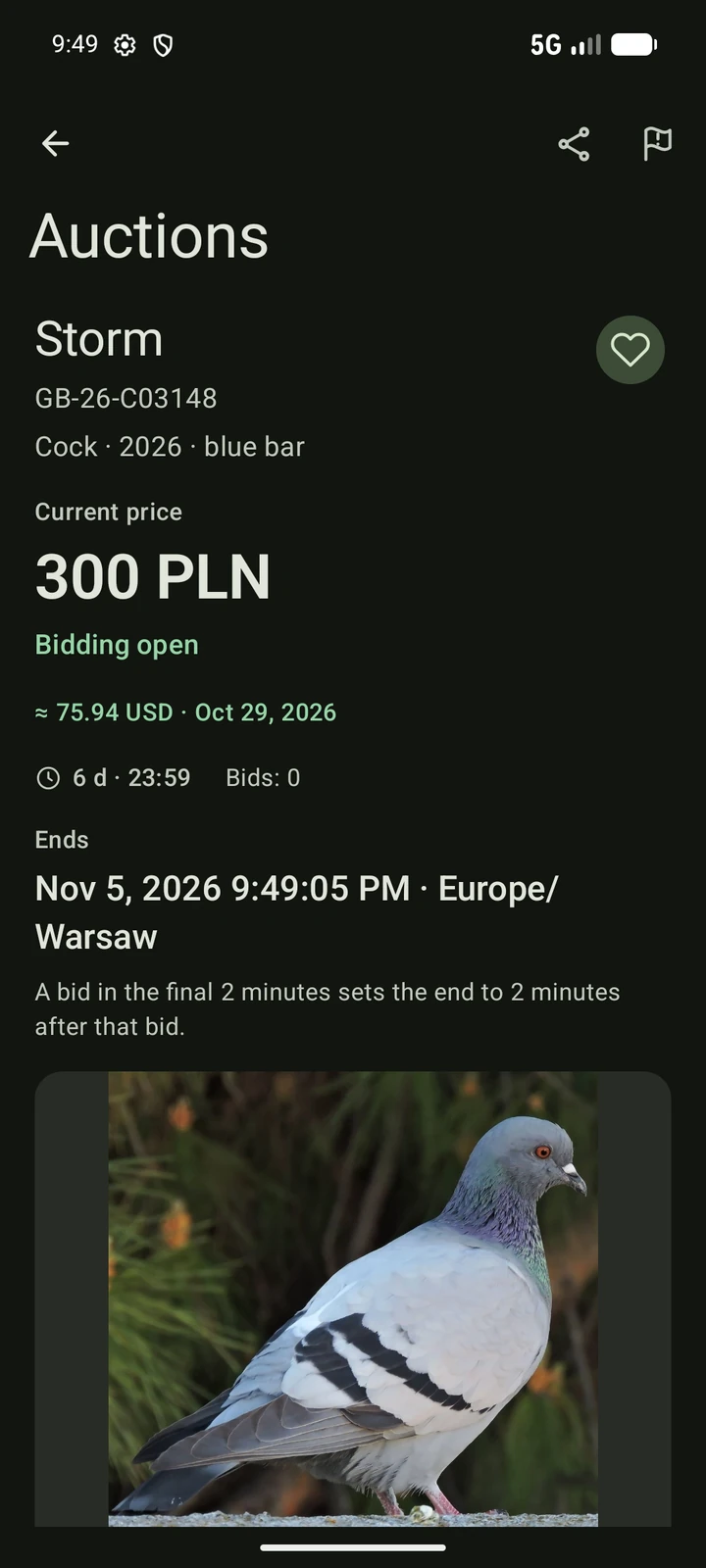
Before you begin
Use a linked account, an internet connection and a completed seller profile. Auctions do not require Plus. Keep the bird in your loft and attach the photos or pedigree you plan to share.
Add the auction
Link your account and complete your profile
Open Settings → Seller profile. Sign in if requested, enter your seller details and choose your country and region. Accept the seller declarations and save.
Choose a bird from your loft
Open Auctions, choose Add and then Create auction. Select the bird by its ring number. Check the name and identity before continuing.
Choose the public materials
Select the photographs to include. Use the arrows to put the main photograph first. Assign an attached pedigree or generate one from the family tree. Standard 3-generation export is free; deeper 4–6-generation exports require Plus. Add a public description if you want to give buyers more context.
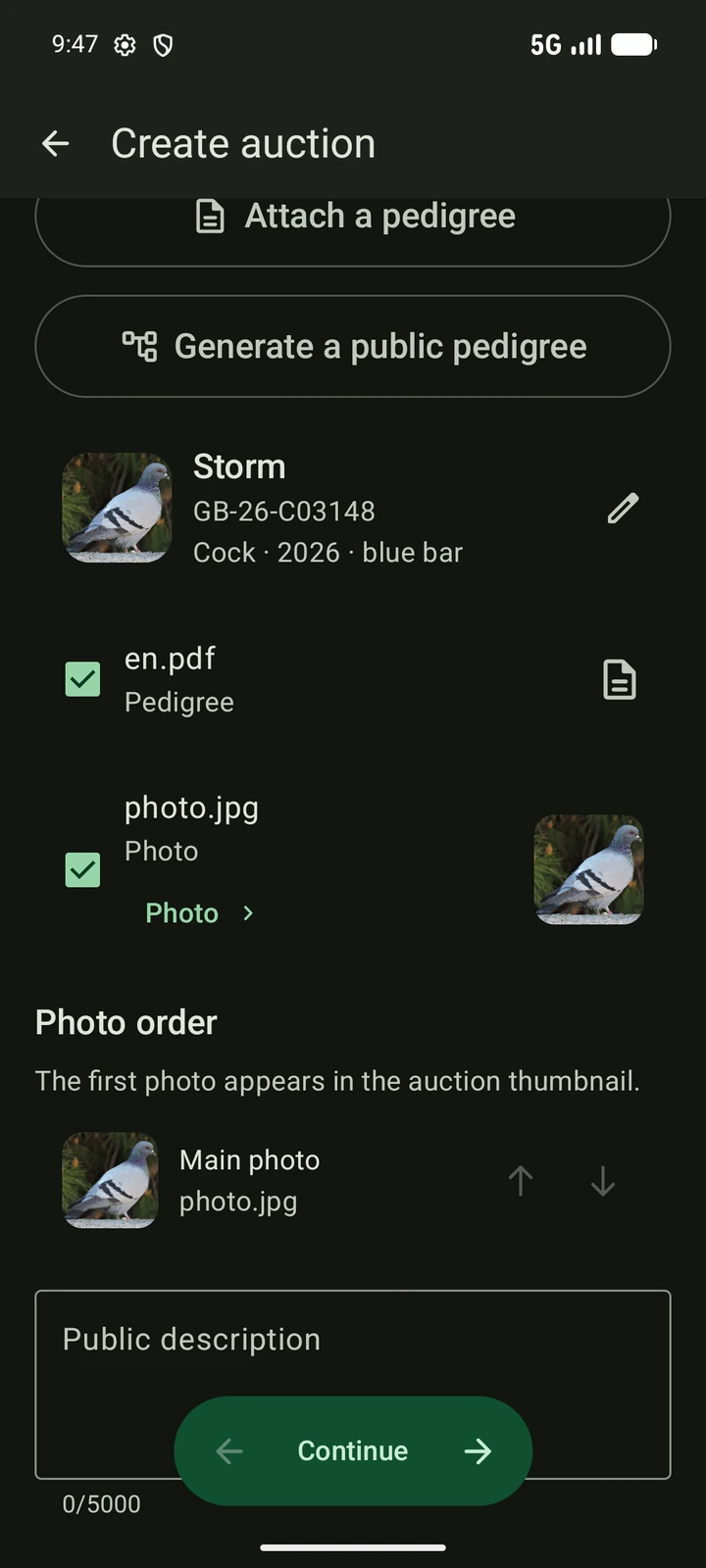
Choose the materials that may become public; the first photograph becomes the thumbnail. Set the auction terms
Choose the currency, starting price and duration. Add a Buy now price or a scheduled start only if you want them. Read every amount before moving to the preview.
Review what buyers will see
Check the photographs, ring, description, pedigree and terms. Only the selected public materials are shared. Confirm the public preview and your right to sell the bird.
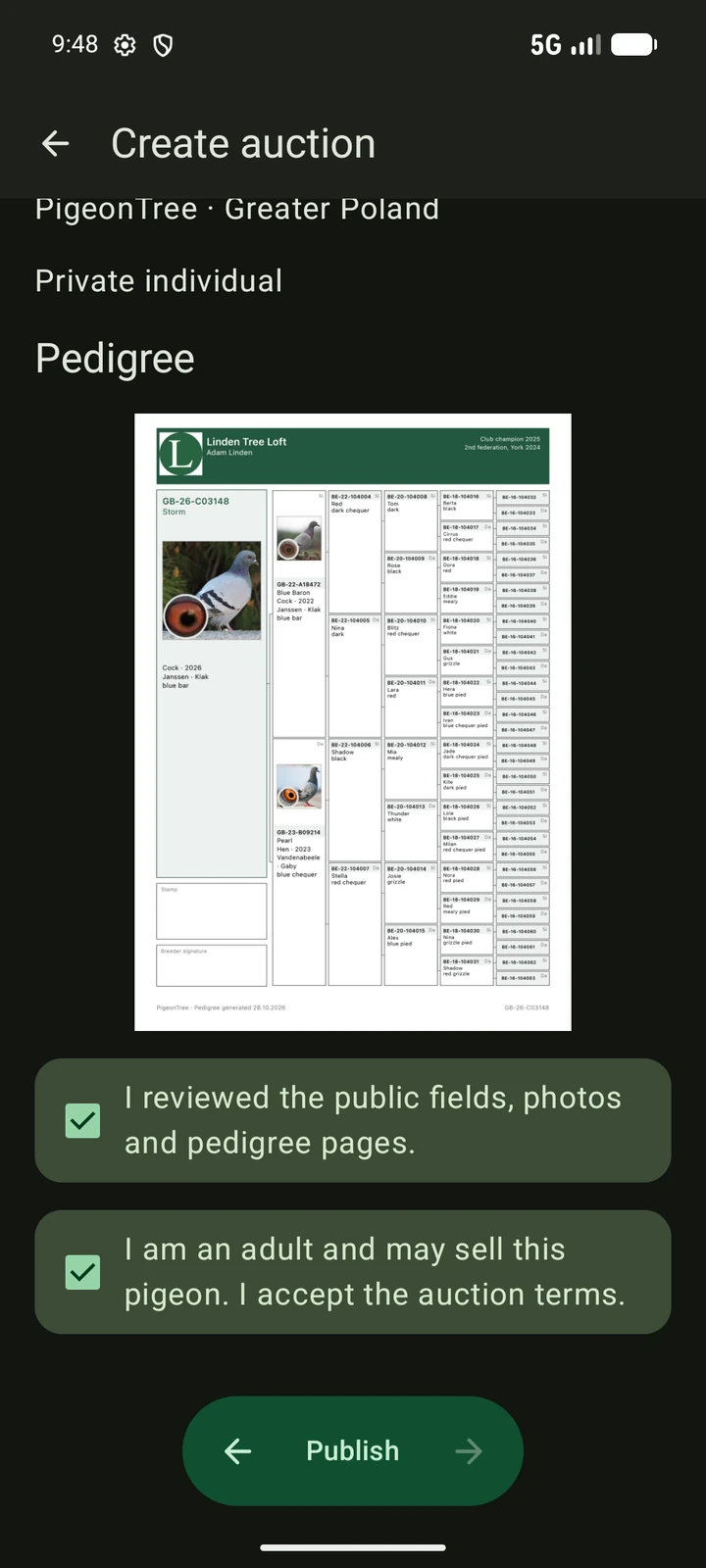
Read the actual public preview before accepting the declarations and publishing. Submit and follow the result
Choose Publish. If moderation is required, the auction waits for review. Follow its status under Selling; respond to any correction request before expecting it to be publicly active.
Keep these details in mind
- Later changes to your private bird record or its main photo do not update the published auction. Check the public listing itself.
- PigeonTree does not collect payment for the pigeon or arrange transport. Buyer and seller agree the transaction details directly.
- Bumps and highlights are optional, separate purchases. A Plus subscription is not a requirement to publish an auction.
After submission
- Find the auction under Selling and check its moderation or active status.
- Open the public detail and verify the thumbnail, selected photos, pedigree and prices.
- Keep your seller contact details current and follow bids and auction notifications.
Screenshots show fictional demonstration birds in the actual app.
Open PigeonTree