
Import race results and clock exports into PigeonTree
Start from an evaluated clock export or a race list that includes the liberation details and bird arrivals. PigeonTree reviews one race at a time; a list of rings on its own does not describe a flight.
Before you start
Import is a PigeonTree Plus feature. The free app can still keep your records and create standard three-generation pedigrees.
Keep the original export. If your loft already contains records, save a PigeonTree backup before importing so you retain a separate copy.
BENZING Live evaluation CSV with the recognised 20-column layout; TIPESCom 1.26 rev2 Race CSV with supported English/German headers; suitable race tables, PDF lists and photographs.
Import step by step
Prepare the source file
Choose one evaluated race. Export a supported CSV from the clock software where your version offers it, or use a complete race table/PDF/photo with its heading. Include the liberation date, place and time and the arrival data. Keep the original unchanged.
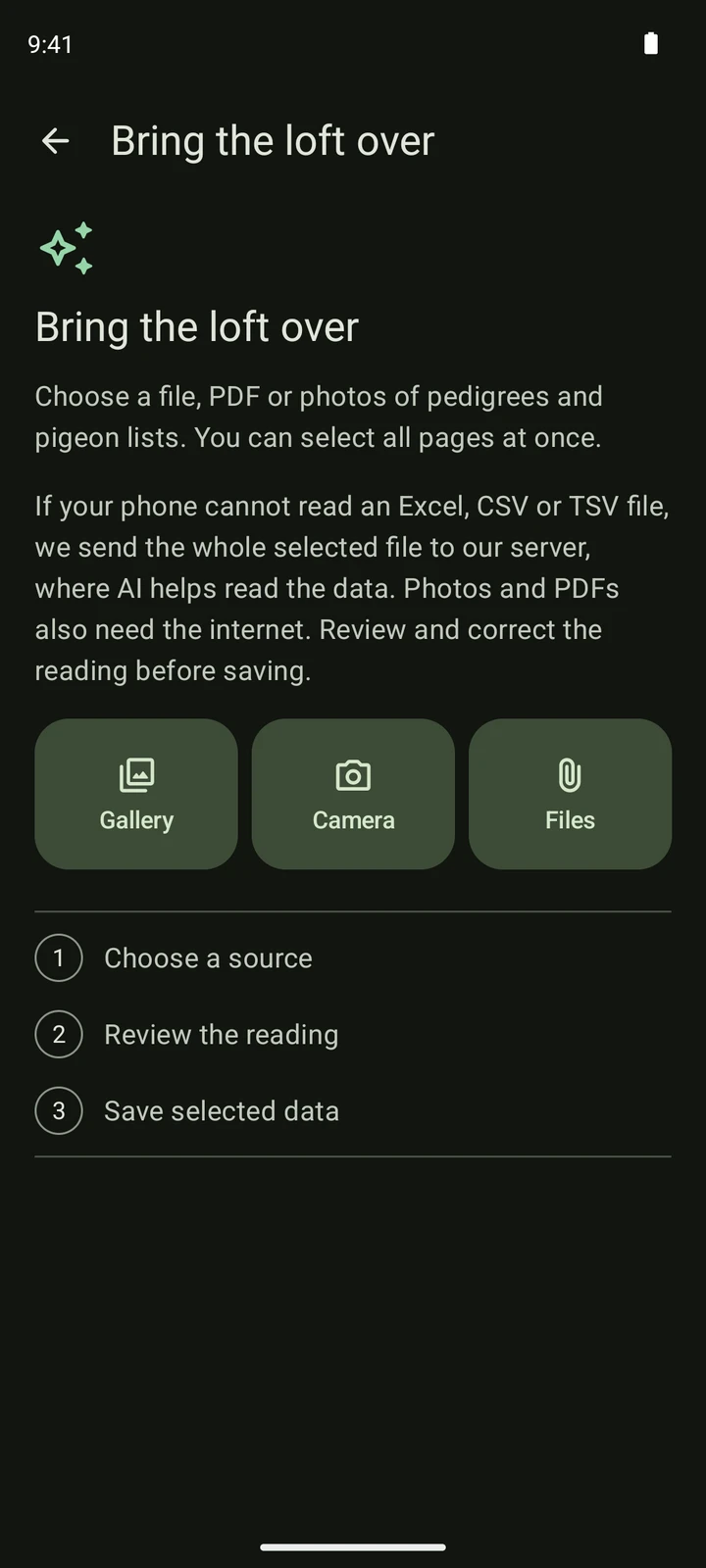
Choose the file in PigeonTree
Open Flights and choose the list-import action. Select the evaluated export, PDF or photographs for one race. The same importer reads the file; the race entry point helps you find the right review.
Review the reading
Check the liberation date, place and time, bird rings, arrivals and the birds selected for the race. Supply or correct missing information explicitly. A bird list without race information does not become a race just because it was opened from Flights.
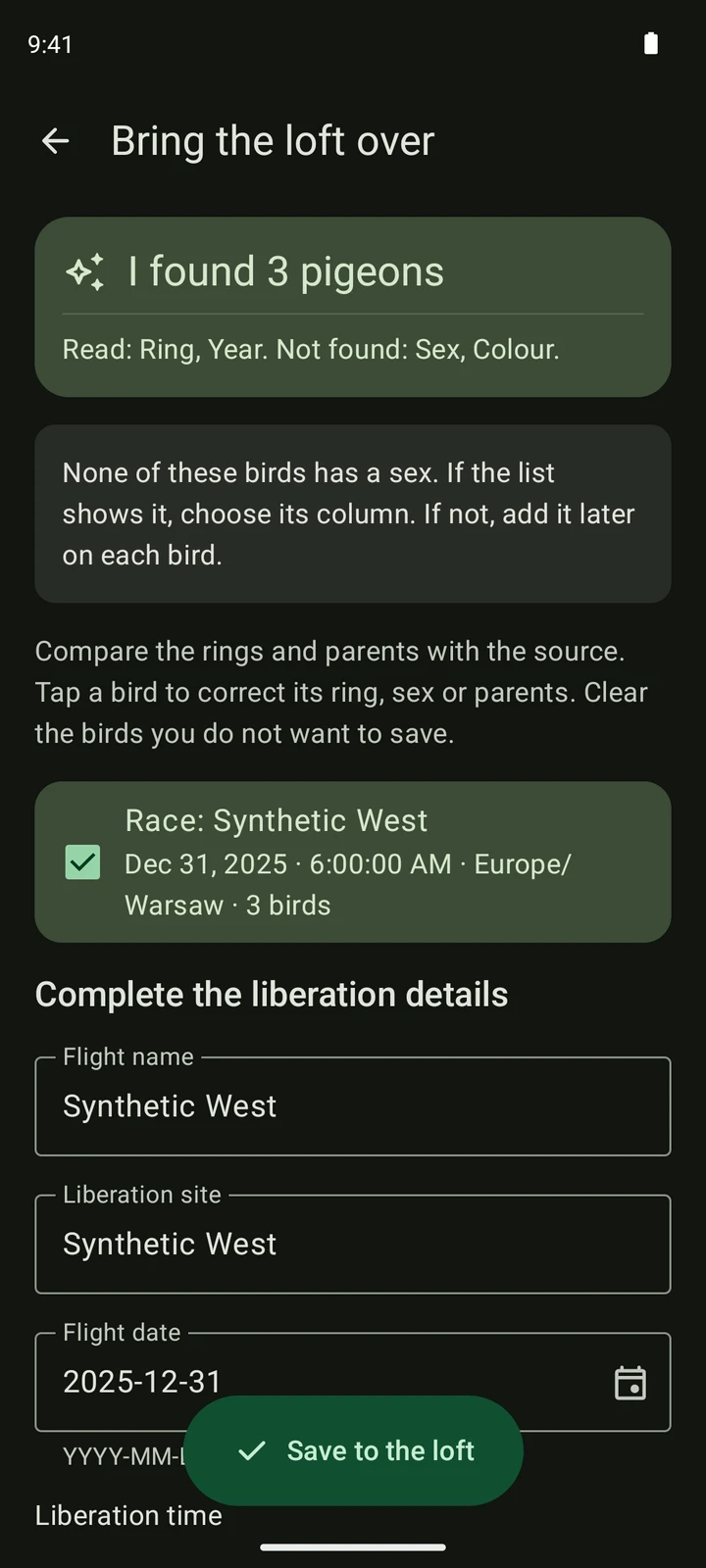
A synthetic TIPES CSV read in the real app. Check the liberation and arrivals in your own file; these are fictional example results. Save the selected data
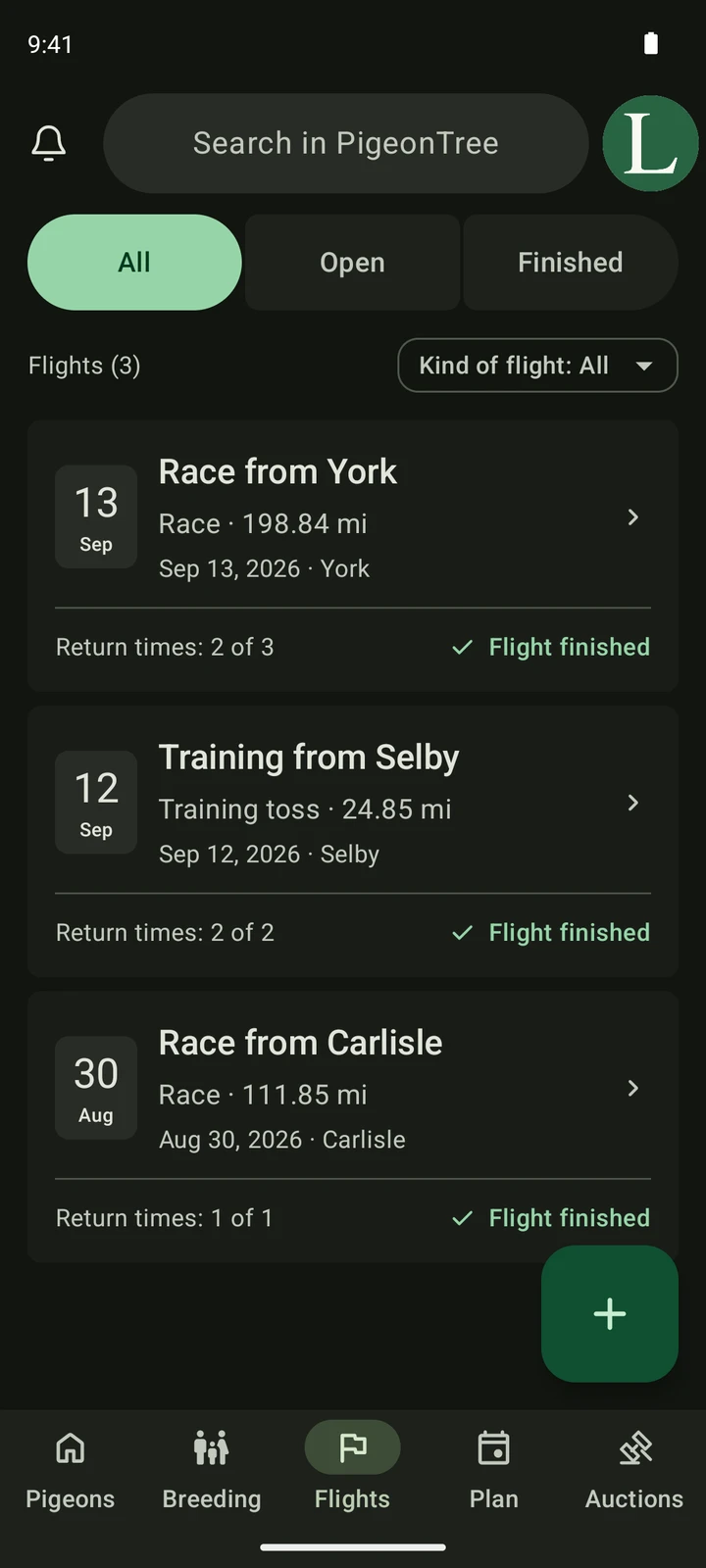
Confirm the flight only when its review is complete. Open it in Flights and compare several arrivals with the source, especially a return after midnight. Imported source placings or speeds must not be mistaken for verified official results.
What to expect
- Clock-brand support refers to these layouts, not every export produced by the brand. TIPES CSV availability depends on the installed regional profile.
- Confirm liberation details yourself when the source does not provide them. They are not invented from a pigeon row.
- TIPES source rank and distance can be kept as source notes. A source rank or speed is not automatically an official PigeonTree placing or measured result.
- PDF/photo race reading needs an online connection. Include the heading and import one race list at a time.
Check the saved records
- Compare the liberation and at least several complete bird rings.
- Check full arrival dates and times, including returns after midnight.
- Review the saved flight, selected birds, source notes and any missing distance information.
Get PigeonTree