
Import CompuStam records into PigeonTree
PigeonTree reads selected CompuStam W50/W60 exchange files locally. This is an import of records and family links from a supported export, rather than a conversion of every CompuStam backup.
Before you start
Import is a PigeonTree Plus feature. The free app can still keep your records and create standard three-generation pedigrees.
Keep the original export. If your loft already contains records, save a PigeonTree backup before importing so you retain a separate copy.
Supported fixed-record W50/W60 exchange profiles. Arbitrary BCK, Paradox or proprietary database backups are not interchangeable with this export.
Import step by step
Prepare the source file
Create or locate a W50/W60 exchange export from CompuStam and transfer an unchanged copy to your phone. Use the export function available in your installed version; menu labels and backup formats vary. Keep the original program and its backup.
Choose the file in PigeonTree
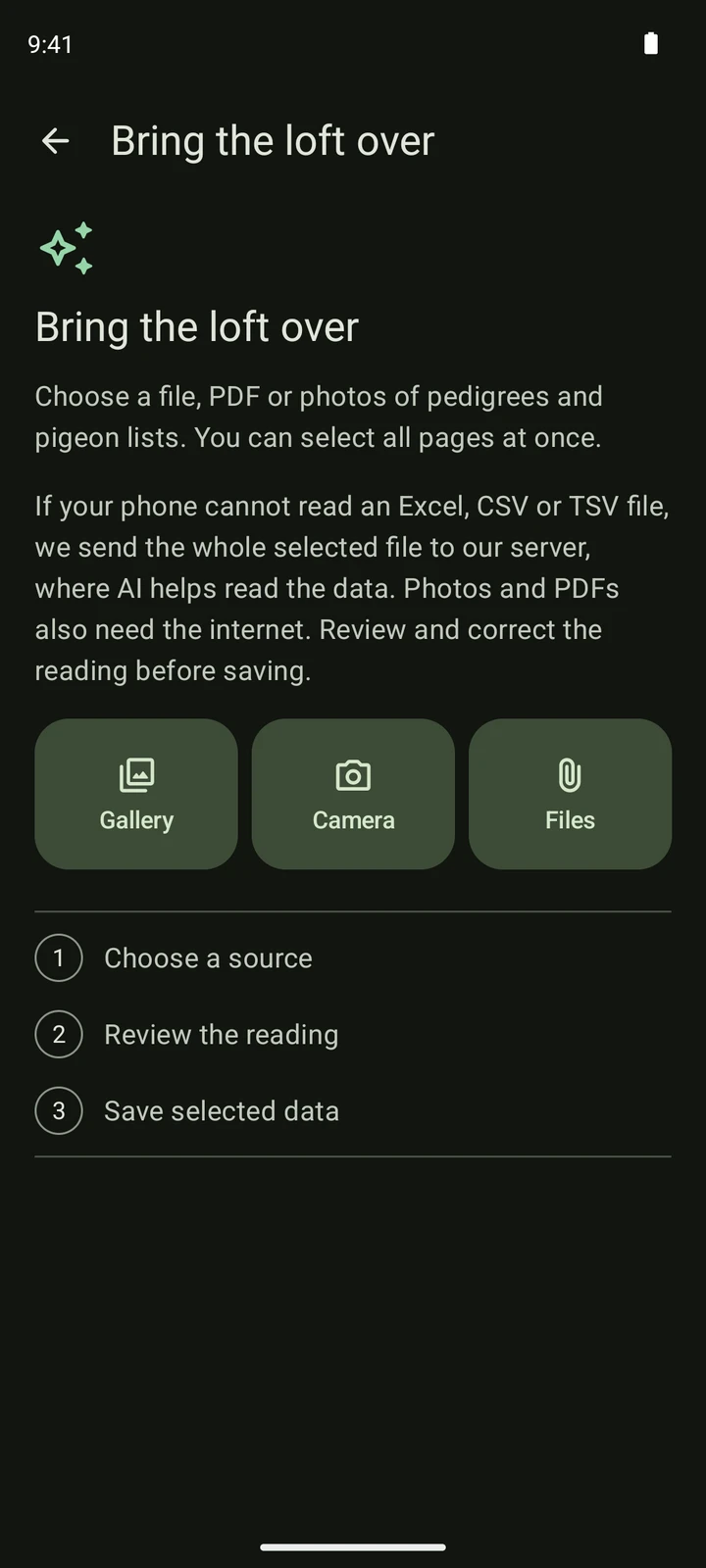
Open the import screen and choose Files. Select the original export from your phone or cloud file provider. You can choose more than one file. Let the app read the selection before changing anything.
Review the reading
Compare ring numbers, parents, sex and year with the source. Open a bird to correct its details, untick records you do not want and check the column mapping when it is offered. Resolve requested statuses before saving. A repeated ring or a warning needs a decision, not another blind import.
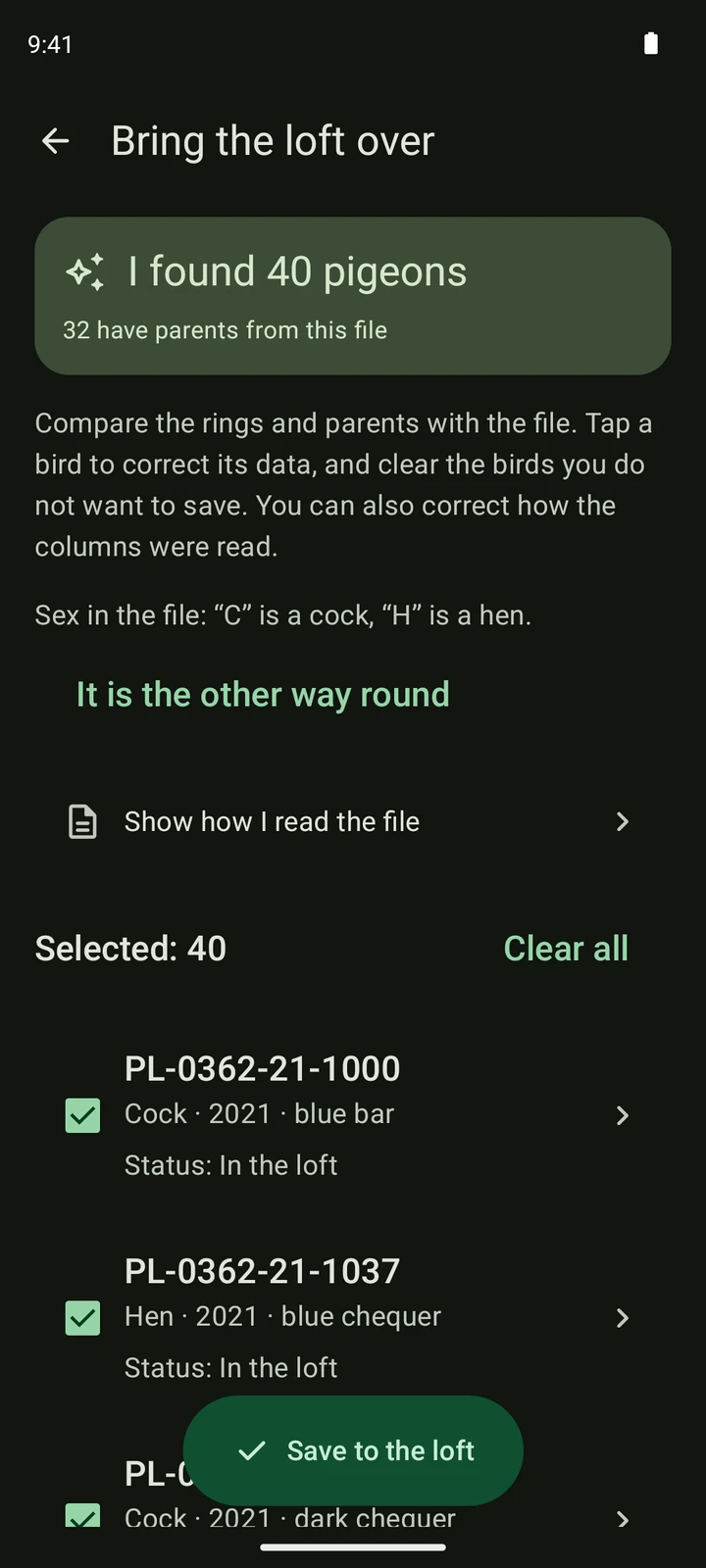
A fictional CSV list read in the real app. This illustrates the review screen; your source file and record count will differ. Save the selected data
Confirm only after checking the preview. Reading a file does not itself save birds into your loft. After saving, open the records and a pedigree to verify the family links. A local save and completed cloud synchronisation are separate things.
What to expect
- The reader checks the content and supported record structure, not just the filename. Renaming a backup will not convert it.
- Review the status of new birds explicitly. CompuStam status codes are not silently treated as PigeonTree statuses.
- This path reads records locally. It does not promise migration of all photographs, documents, settings or flight history.
Check the saved records
- Compare a few complete rings, including leading zeros, with CompuStam.
- Open a young bird and verify both parents and the pedigree.
- Check the status choices and warnings for records already in your loft.
Get PigeonTree