
Import CSV, Excel and other data files into PigeonTree
A table is useful when its rows identify birds and its columns contain the facts you want to keep. PigeonTree reads supported table and database structures, then asks you to review how they map to your loft.
Before you start
Import is a PigeonTree Plus feature. The free app can still keep your records and create standard three-generation pedigrees.
Keep the original export. If your loft already contains records, save a PigeonTree backup before importing so you retain a separate copy.
CSV/TSV and delimited text; XLSX, ODS and Excel XML 2003; small XLS workbooks through online recovery; HTML tables/listings; dBase III/IV DBF; SQLite; table-shaped JSON/XML; supported data files inside ZIP archives.
Import step by step
Prepare the source file
Use one clearly identified bird per row and separate ring, sex, year, colour, name and parent rings where available. Export text without converting ring numbers into numeric values. Keep complete rings and leading zeros. Transfer the original data file rather than a screenshot when you have it.
Choose the file in PigeonTree
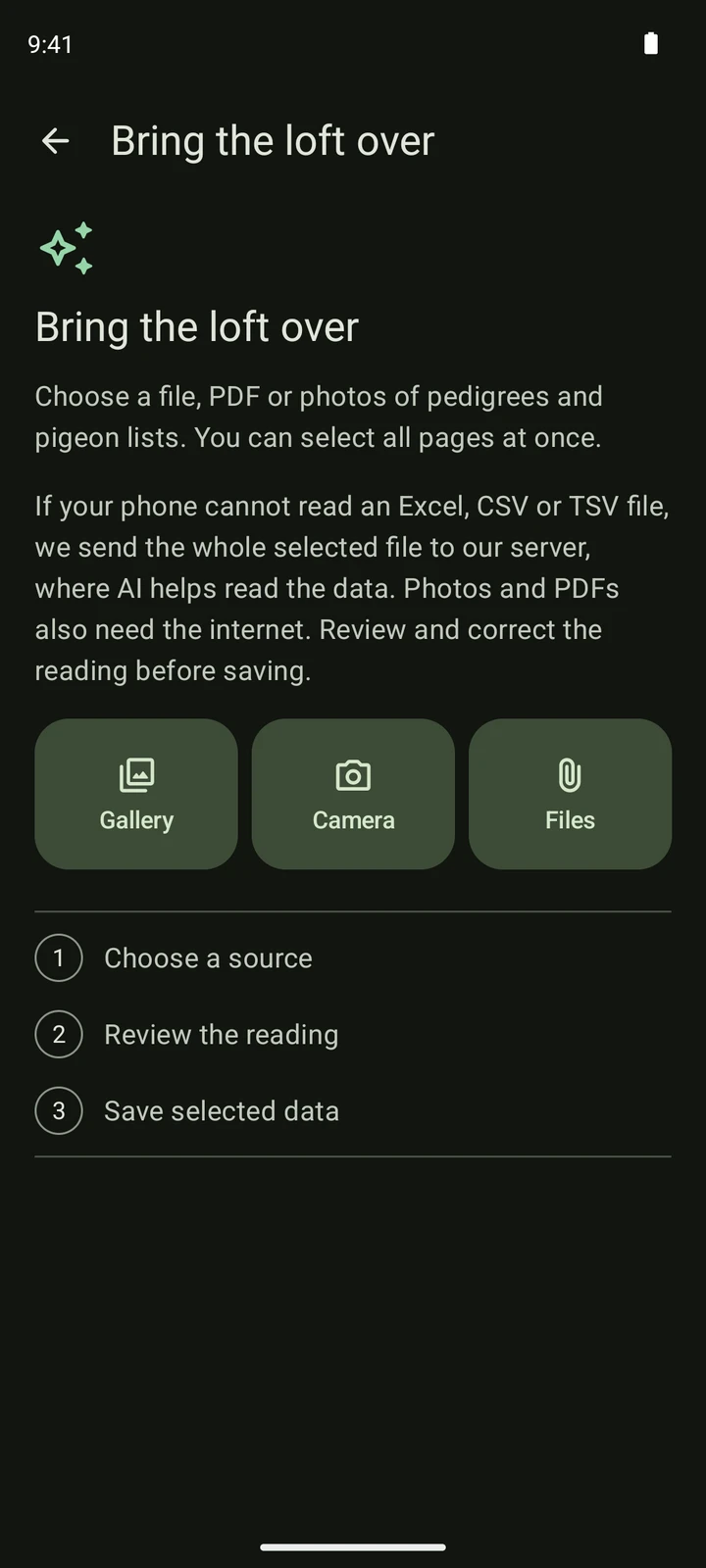
Open the import screen and choose Files. Select the original export from your phone or cloud file provider. You can choose more than one file. Let the app read the selection before changing anything.
Review the reading
Compare ring numbers, parents, sex and year with the source. Open a bird to correct its details, untick records you do not want and check the column mapping when it is offered. Resolve requested statuses before saving. A repeated ring or a warning needs a decision, not another blind import.
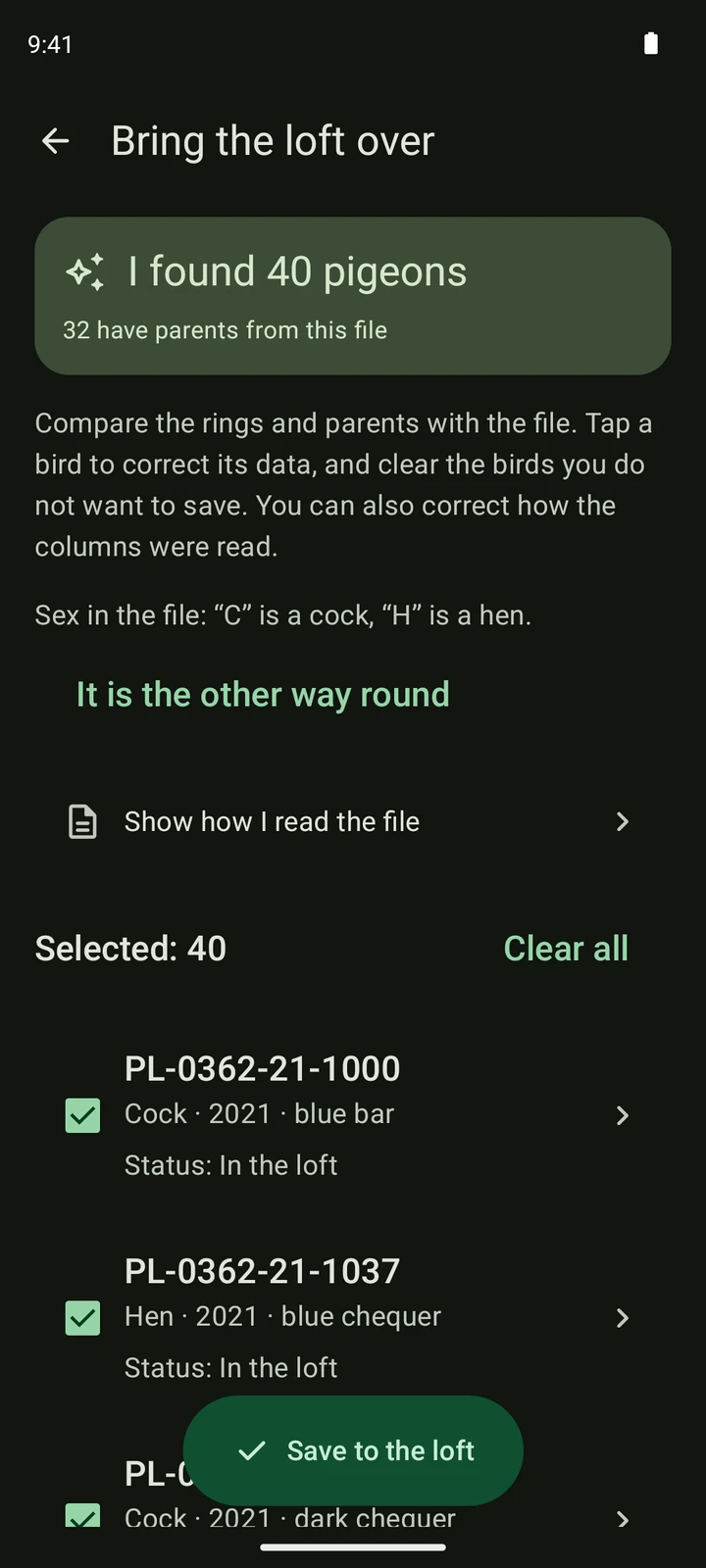
A fictional CSV list read in the real app. This illustrates the review screen; your source file and record count will differ. Save the selected data
Confirm only after checking the preview. Reading a file does not itself save birds into your loft. After saving, open the records and a pedigree to verify the family links. A local save and completed cloud synchronisation are separate things.
What to expect
- A recognised container does not guarantee useful bird rows. Column mapping and the preview determine what can be imported.
- Legacy binary XLS is not read locally. Supported XLS workbooks up to 2 MiB can use online recovery. Access and Paradox remain unsupported; export another supported format from the original program.
- An online column check may send a sample of table rows to the app’s server. Recovery for XLS, XLSX, CSV or TSV may send the whole selected file for AI-assisted reading and needs internet access. PDF/image members found inside an archive are not automatically sent to AI.
- An export is not a full application backup. Keep source files and review omissions, duplicate rings and ancestry warnings.
Check the saved records
- Check complete rings, leading zeros and the year chosen for several birds.
- Review father and mother columns instead of assuming the first match is right.
- Check whether all intended sheets/tables were included and any truncation or skipped-file notice.
Get PigeonTree