
Import Pigeon Planner records into PigeonTree
PigeonTree has dedicated readers for supported Pigeon Planner CSV exports, schema-4 SQLite databases and the recognised ZIP backup structure. The source determines which records and relationships are available.
Before you start
Import is a PigeonTree Plus feature. The free app can still keep your records and create standard three-generation pedigrees.
Keep the original export. If your loft already contains records, save a PigeonTree backup before importing so you retain a separate copy.
Verified source profiles cover Pigeon Planner 4.12.0 CSV, schema-4 SQLite and the recognised current ZIP backup layout. Other versions or changed schemas need separate checking.
Import step by step
Prepare the source file
Export your records or make a backup in Pigeon Planner, keep an original copy and transfer the supported CSV, SQLite file or ZIP to your phone. Select the file itself; do not change a database into CSV by renaming it.
Choose the file in PigeonTree
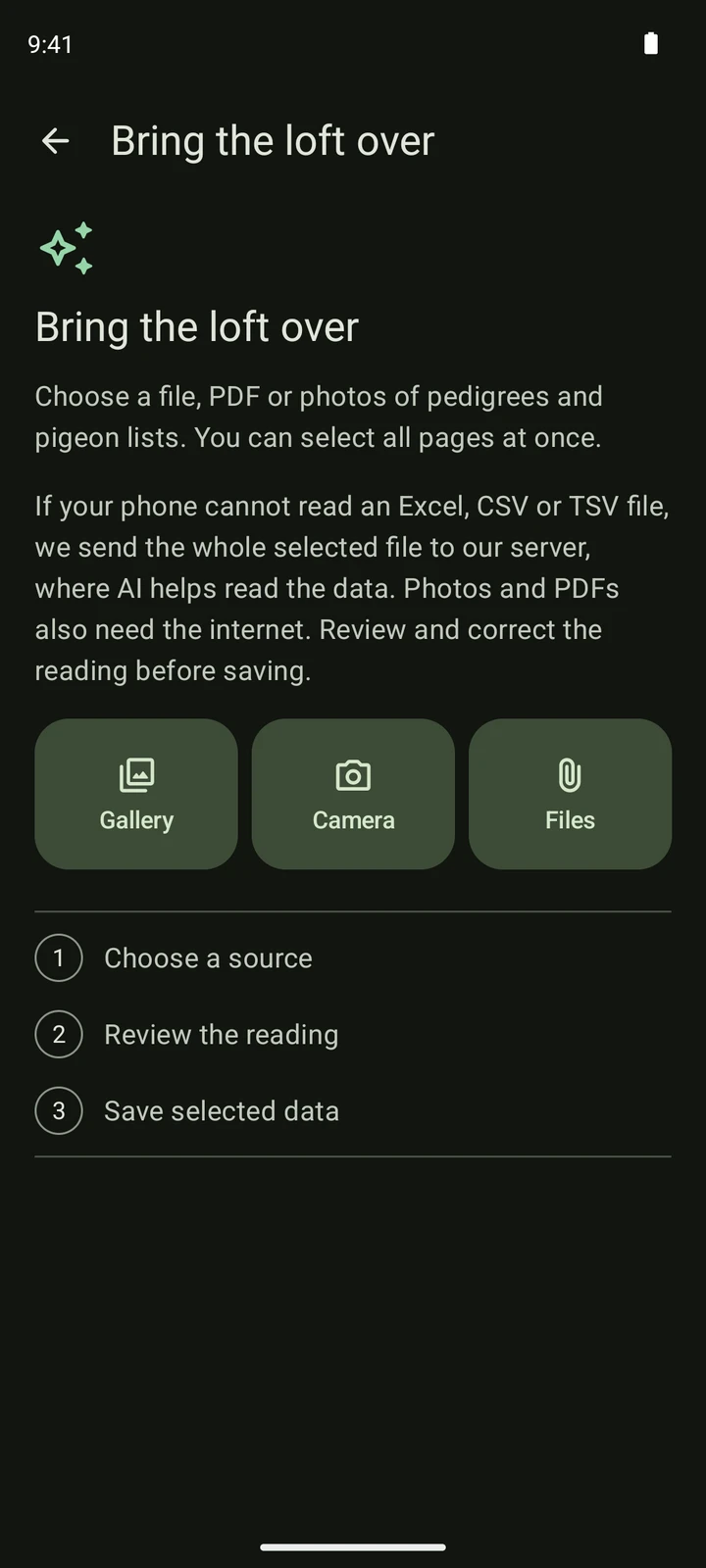
Open the import screen and choose Files. Select the original export from your phone or cloud file provider. You can choose more than one file. Let the app read the selection before changing anything.
Review the reading
Compare ring numbers, parents, sex and year with the source. Open a bird to correct its details, untick records you do not want and check the column mapping when it is offered. Resolve requested statuses before saving. A repeated ring or a warning needs a decision, not another blind import.
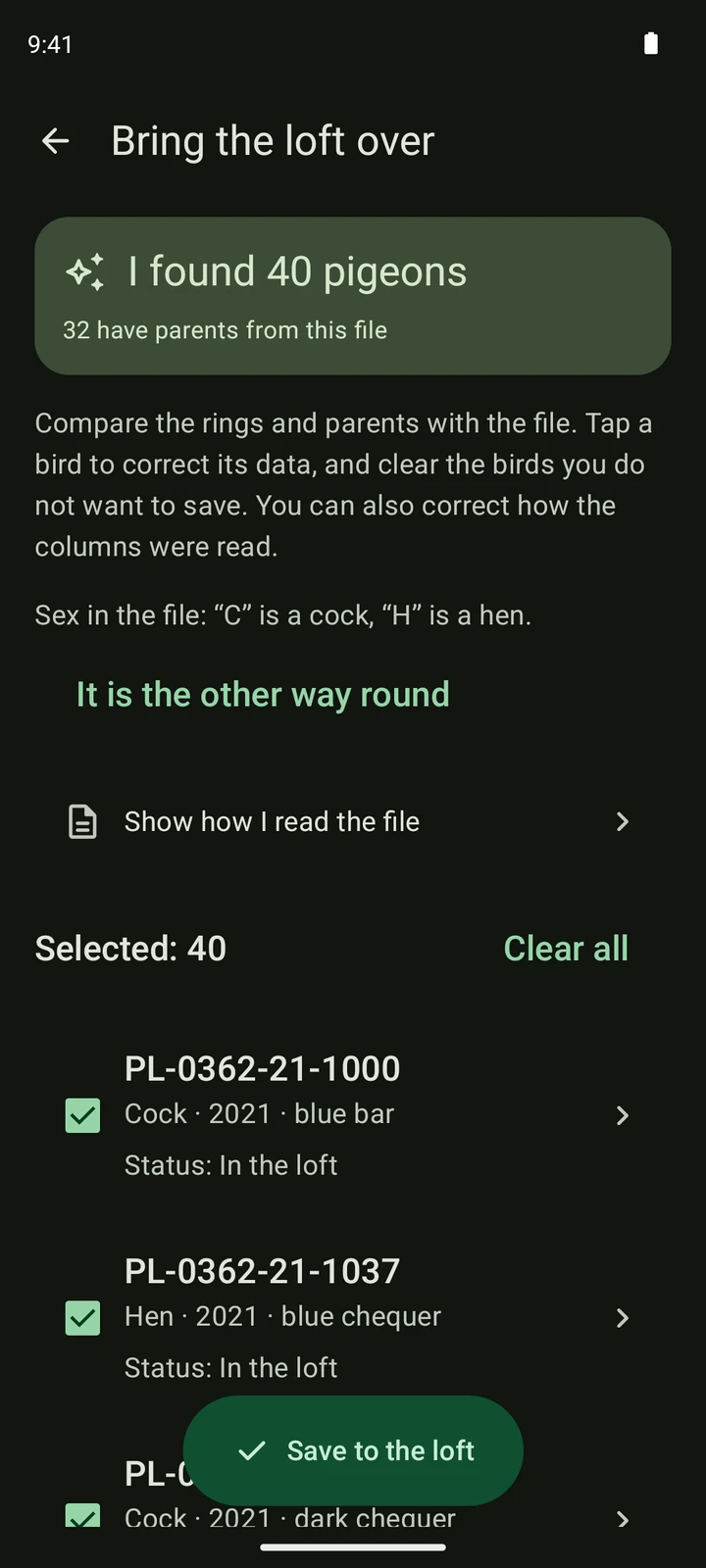
A fictional CSV list read in the real app. This illustrates the review screen; your source file and record count will differ. Save the selected data
Confirm only after checking the preview. Reading a file does not itself save birds into your loft. After saving, open the records and a pedigree to verify the family links. A local save and completed cloud synchronisation are separate things.
What to expect
- The dedicated reader uses source IDs to resolve parents within a database. Compare family links when bringing together separate exports.
- Ancestors hidden from the main Pigeon Planner list can still be part of its database and appear in the import review.
- CSV can contain less information than a database backup. Photographs and the wider source history are not migrated; check the notices about omissions. Do not assume documents or application settings will transfer.
Check the saved records
- Compare the separate components of the ring and its leading zeros.
- Open a pedigree that includes an ancestor hidden in the original list.
- Review sex, statuses and repeated rings before accepting the import.
Get PigeonTree